Multi-factor authentication and password practice for teams: a simple rollout plan
How MFA works, which type to choose, what current NIST guidance says about password length and rotation, how to roll out a password manager, and a one-week plan for a small team, plus joiner and leaver checklists.
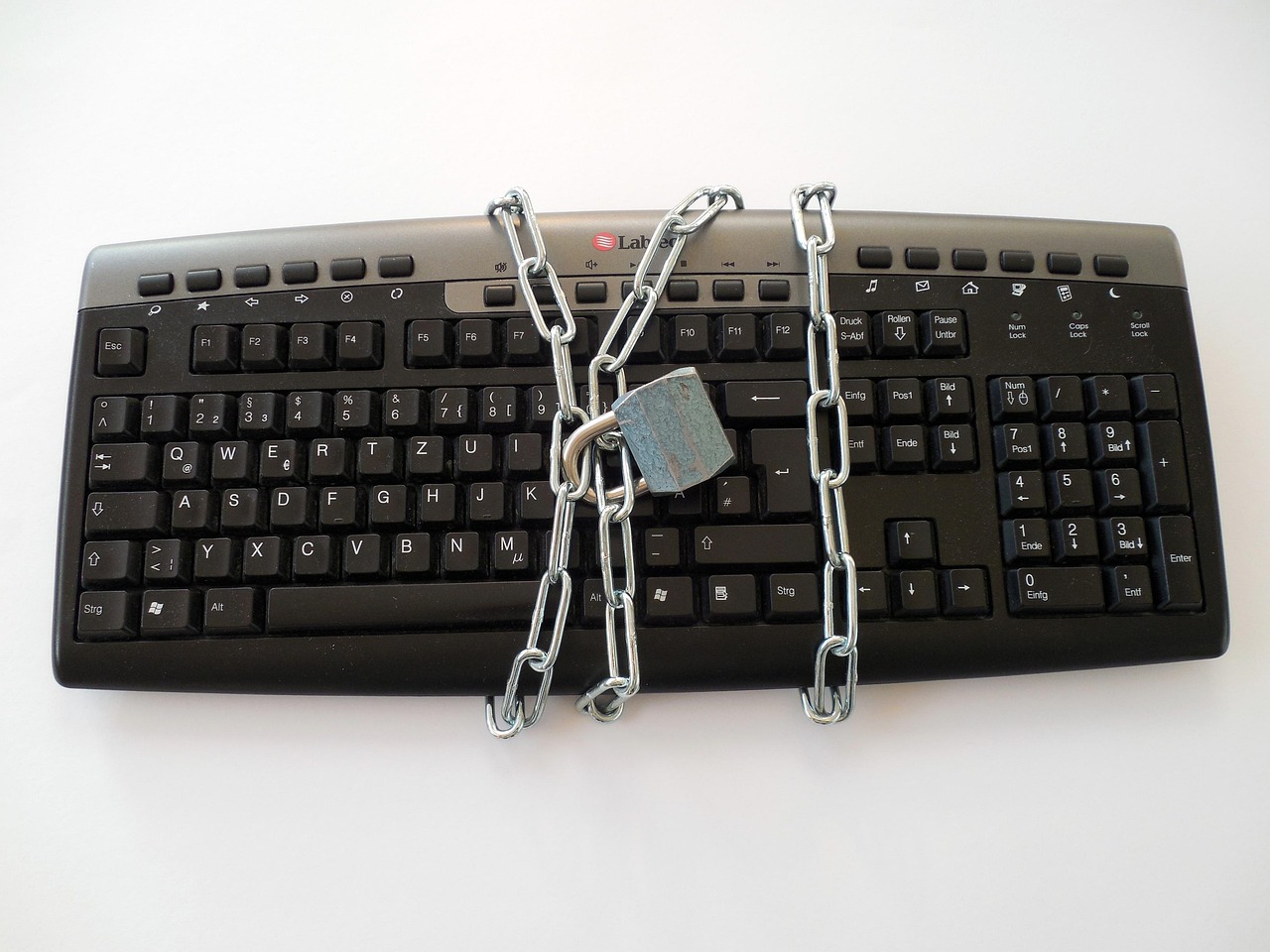
Passwords are still the front door to almost every business tool you use: email, banking, accounting, payroll, your website, your customer list. When one is guessed, reused or phished, the attacker walks in as a legitimate user and nothing looks wrong until the damage is done.
Two habits fix most of this: long, unique passwords stored in a password manager, and multi-factor authentication (MFA) on every account that matters. This guide explains both for a team, with a rollout plan you can finish in a week. It draws on NIST's digital identity guidelines, the US Small Business Administration, CISA and the FTC. It is general guidance, not a substitute for advice from a security professional.
How MFA actually works
MFA asks you to prove who you are in more than one way: something you know (a password), something you have (a phone or security key), or something you are (a fingerprint). A stolen password alone is then not enough.
The main types, from weakest to strongest
CISA describes a clear ladder, and its advice is that any MFA is better than none.
- Codes sent by text or email. Easiest to set up and the weakest form, since messages can be intercepted or redirected.
- Authenticator apps. These generate short-lived codes on the phone. More secure than texts.
- Phishing-resistant MFA. Hardware such as smart cards or FIDO security keys that must be physically present at login. CISA calls this the strongest option because a fake login page cannot easily trick it.
Where to turn it on first
CISA recommends starting with administrator and remote-access accounts, then the commonly targeted systems: email, file storage and anything that holds money. The SBA also advises checking whether your banking, accounting and payroll vendors offer MFA and switching it on. The FTC adds that MFA should cover employees, contractors and anyone else who connects to your systems.
Password practice that matches current guidance
Older advice told people to use symbols, numbers and capitals, and to change passwords every 90 days. That advice backfired: people made small predictable changes. Current NIST guidance says otherwise.
What NIST now recommends
According to NIST's digital identity guidelines:
- Length matters most. A password used as the only factor should be at least 15 characters. One used only as part of MFA can be shorter, with a minimum of 8.
- No forced complexity. Systems should not require mixes of uppercase, digits and symbols.
- No forced periodic changes. A password should be changed when there is evidence it has been compromised, not on a calendar.
- Blocklists. New passwords should be checked against lists of breached or commonly used passwords, and against the username or service name.
- Long passwords allowed. Systems should accept at least 64 characters, so people can use passphrases.
What this means in practice
- Use a passphrase of several unrelated words, or let a password manager generate a long random one.
- Never reuse a password across two accounts. One breach elsewhere should not open your bank.
- Change a password immediately after a breach or a suspicious event.
- Replace default passwords on routers, cameras and new software on day one. The FTC lists this explicitly.
- Do not share passwords, write them on sticky notes near the screen, or send them by plain email.
Password managers for teams
A password manager stores every login in an encrypted vault protected by one strong passphrase and MFA. It also fills passwords in automatically, which helps against fake sites because it will not fill a login on the wrong address.
Choosing and rolling one out
- Pick a business plan with shared folders, so a team can share a login without anyone seeing the password in chat.
- Make the vault master passphrase long and MFA-protected.
- Store the recovery details for the vault with the owner in a safe place.
- Move shared logins into the manager first, since they are the riskiest.
- Remove a person's vault access on their last day.
A one-week rollout plan
- Day 1: List every business account, who uses it and whether it supports MFA. Include shared tools.
- Day 2: Turn on MFA for email and the owner or admin accounts. Save backup codes somewhere secure.
- Day 3: Choose and set up the password manager. Import existing logins.
- Day 4: Run a 30-minute team session: why MFA, how the app works, what to do with a lost phone.
- Day 5: Everyone enrolls on email, file storage, accounting and banking. The owner checks the list.
- Day 6: Replace default and reused passwords, starting with the most sensitive.
- Day 7: Write down the lost-phone and leaver procedures and store them with the owner.
Checklist for people joining and leaving
| Event | Do this the same day | |---|---| | New hire | Create their own login, enroll MFA, add to the password manager, grant only needed access | | Role change | Remove old access, add new access, review shared vault folders | | Leaver | Disable accounts, remove from vault, rotate any shared password they knew, collect devices | | Lost phone | Revoke sessions, move MFA to a new device, rotate passwords on key accounts |
Common mistakes
- Using one phone number or email as the only recovery path with no backup codes saved.
- MFA on some accounts but not email. An attacker who controls email can reset the rest.
- Sharing one login to save a license fee. You lose accountability and cannot remove one person cleanly.
- Approving a login prompt you did not start. If a prompt appears out of nowhere, someone has your password. Deny it and change the password.
- Forcing frequent password changes, which pushes people toward weak, patterned passwords.
- Storing passwords in a spreadsheet or shared document anyone can open.
- Keeping leavers active because "they might need it later".
Where WorkBOS fits
Logins and access are only part of security, but they are the part you control from day one. WorkBOS lets you give each person their own account and set what each role can see and change, and its audit log records who did what. Pair that with a password manager and MFA on your email and banking, which sit outside any single app. Plans are on the pricing page, with setup steps in the docs. For the access side, read our guide to roles and permissions in a small company and the broader cybersecurity basics.
Frequently asked questions
Q: Is SMS-based MFA good enough? A: It is much better than no MFA, but it is the weakest type. Move to an authenticator app where you can, and use hardware keys for administrators and finance accounts.
Q: Should we still change passwords every few months? A: NIST says not to force periodic changes. Change a password when it may be compromised, or when someone who knew it leaves.
Q: How long should a password be? A: NIST says at least 15 characters when the password is the only factor, and at least 8 when it is one part of MFA. In practice, aim for a long passphrase or a generated random password.
Q: What if an employee loses their phone? A: Revoke that device and active sessions, enroll the new phone, and rotate passwords on important accounts. Keep backup codes so nobody is locked out.
Q: Do we need MFA for contractors? A: Yes, if they can reach your systems. The FTC recommends covering contractors and anyone else who connects to your network.
Sources are linked in the text above: NIST, SBA, CISA, FTC.
Run it all from one place
Projects, clients, finance, people and AI employees in one system. Start free, no card needed.
Start free →